Instead of one long row of tiny tabs, Workspaces in Vivaldi let you keep related tabs together as projects, and sync those setups across your devices when you need them.
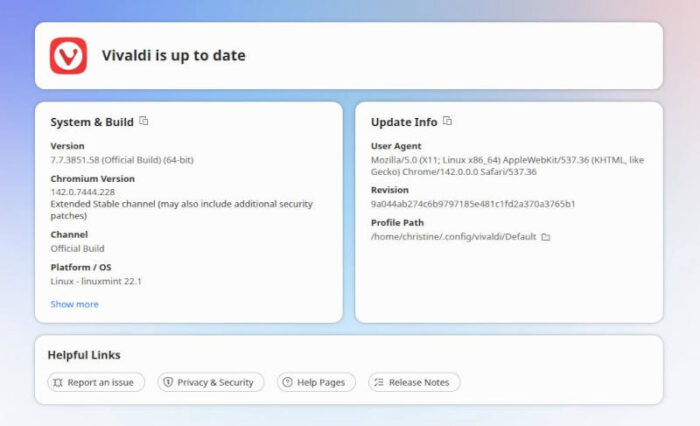
One of the things I like about Vivaldi — despite it not being totally open source — is how easy it is to sync it so that all Vivaldi instances on all my devices are exactly the same. This means usernames and passwords I decide to save on my desktop are instantly available on my laptop and my phone. That’s also true of tabs, although deep syncing of tabs has been a work in progress.
This includes tabs, as well as Vivaldi’s cool and groovy way of organizing them — just got about as easy as it gets. In fact, syncing Vivaldi’s tab features across devices seems to get easier with each new release.
Tabs Stacks and Workspaces
For about as long as there’s been a Vivaldi, the browser has had Tab Stacks — a feature that was first developed at Opera, a browser that was founded by Jon Stephenson von Tetzchner, who later co-founded Vivaldi.
They started as a basic ability to drag one tab onto another to stack them together — sort of an advanced way to temporarily bookmark a site — then grew to include two‑level and accordion stacks. They were a game changer from the start, and have since been copied by other browsers.
Vivaldi carried the feature to a new level in 2023 with the introduction of Tab Workspaces, which is an easy way to organize tabs at an even deeper level. The feature works much the same way as stacks, but now allows tabs to be grouped together into “workspaces,” which are kept separate from other tabs.

If stacking tabs can be compared to bookmarking, then Workspaces are like bookmark managers on steroids. For example, I’m currently working on an article that centers on RHEL Clones, and I keep all of the tabs for webpages relevant to the research I’m doing in a workspace called “RHEL Clones.” That way, while doing other work, they’re not cluttering up my desktop, but when I need them I can bring them up in a way that keeps them separated from the clutter.
Creating and Working With Workspaces
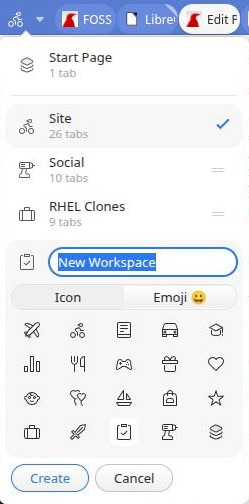
Vivaldi makes creating a workspace easy, just click on the Workspaces menu on the tab bar’s far left — it’ll have a simple icon and a down-pointing arrow — and select New Workspace. There you can create a descriptive name for the workspace — the two workspaces I use most are called Site and Social — and choose an icon or emoji that will display in the Workspace menu tab when you’re working in that workspace. When activated, this menu also contains a list of all available Workspaces, which can be opened with a click.
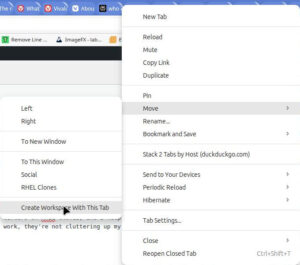
You can also create a workspace on the fly. I created the RHEL Clones workspace when an idea hit me while looking at the changelog for the latest release from Almalinux. To create it, all I had to do was right-click on the webpage’s tab and select Move>Create Workspace with This Tab. When a workspace is created this way, the user is immediately taken to the new tab.
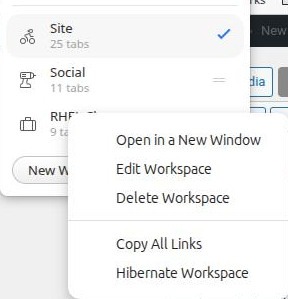
You’ll probably find that at least a couple of the workspaces you create will be somewhat permanent, used as ways of separating different workflows. Others will be temporary, and will be unnecessary after the project is completed. When a workspace is no longer needed, they’re easy enough to get rid of. Just bring up the Workspace menu, right-click on the workspace name, and then click Delete Workspace. Deleting the workspace will, of course, close all of its tabs.
Syncing Workspaces With Other Devices
Another good thing about Workspaces is that, just like tabs, they can be synced with instances of Vivaldi you have installed on other devices. In other words, tabs and workspaces you create on your desktop can also be available to you on your laptop. To make that happen, all you need to do is click the Vivaldi “V” logo in the screen’s upper left, select Settings>Sync and open an account.

Working with tabs and workspaces — especially across devices — seems to keep getting easier with each new release. With the latest release, you can click on the Windows and Tabs icon on the screen’s left which creates searchable side panel listing all of all the tabs and Workspaces on all of your synced devices — with options to sort them manually or by title, host domain, or “audio status.”
From there, with just a click you can open any of the tabs, or create any of the workspaces — along with their tabs — on the machine you’re using. This is great for people like me who need for their laptops to be as close to a mirror of their desktop as possible.
Vivaldi and Open Source
Unfortunately for open source purists, although Vivaldi is totally free to use, and doesn’t ship with any crippleware like some open core software, Vivaldi isn’t open source from head to toe.
Vivaldi is built in three layers, starting with its Chromium base, which is released under a hodgepodge of open source licenses. The next layer, Vivaldi’s backend for features such as its ad blocker, notes, and the like, is also open source — covered under the 3‑clause BSD license. The UI layer, which includes Vivaldi’s tab stacking and workspaces technology — as well as the browser’s email client and calendar — is not only proprietary, but obfuscated to make it difficult to reproduce.
According to Vivaldi, roughly 92% of the browser’s code is open source Chromium code, about 3% is the company’s open source C++ code, and about 5% is the proprietary UI.

My viewpoint is that it’s your computer and you should run on it what you want. I generally look for open source alternatives, but occasionally I make an exception. This is one of those cases.

Christine Hall has been a journalist since 1971. In 2001, she began writing a weekly consumer computer column and started covering Linux and FOSS in 2002 after making the switch to GNU/Linux. Follow her on Twitter: @BrideOfLinux