According to our writer, three small, easy-to-miss plugins were all it took for Joplin to live up to its Evernote-killer reputation.
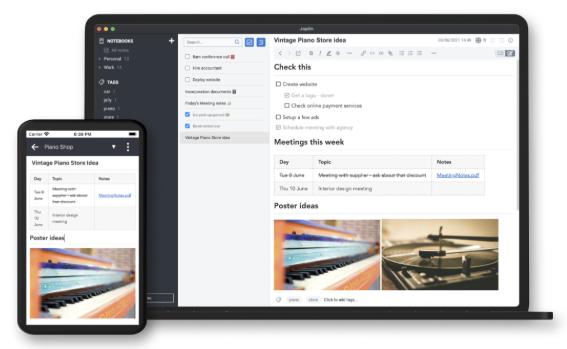
In Jack Wallen’s column on the Joplin note-taking app that FOSS Force published about a week ago, he mentioned the app’s rich collection of plugins for expanding its features. They’re actually more valuable than might be evident at first — and could be what separates Joplin from other note-taking apps, including Evernote, which some consider to be the note taking app against which all others are measured.
I’ve been using Joplin for several years now, but until recently I didn’t use it much. Basically I used it to gather clipped URLs of items I found online that I wanted to hold to look at later. I wanted to use Joplin more — I could see its potential — but it just didn’t fit my workflow. I even took a brief look at plugins, hoping to find the killer plugin that would turn Joplin into a must-have app, but I found the available plugins to be — to my mind — of limited scope that mainly only added minor tweaks.
It turns out, that’s the secret sauce. It’s like American football: sure you have to march the ball down a 100-yard field, but in the final analysis, it’s a game of inches. Using that analogy, most plugins only change what Joplin can do and how it does it by a matter of inches. Judiciously use just a few, however, and you find that first downs are suddenly easier to obtain.
Here are three plugins that have turned Joplin into an important part of my workflow. At first glance, each of these might seem… well, underwhelming, but in practice I’ve found them all to be invaluable. I’m starting with the one that makes the biggest difference for my workflow, followed by two others that also help make my work easier.
Templates
In a way, the Templates plugin needs no introduction from me because it provides for Joplin exactly what its name proclaims — and pretty much exactly what we’ve come to expect from the template feature on most word processors. It helps you create a fill-in-the-blanks template for any sort of page or document format that you use on a regular basis.

An example might be a template for a form letter, which points out places that need to be filled in with names, dates, dollar amounts, and the like. While you can do all this manually by searching through the last similar letter you sent, a simple template document that marks the places that need to be modified with something like [NAME], [DATE], and [DOLLAR AMOUNT] makes things easier. The Templates plugin goes a step further and actually finds and fills in the blanks for you.
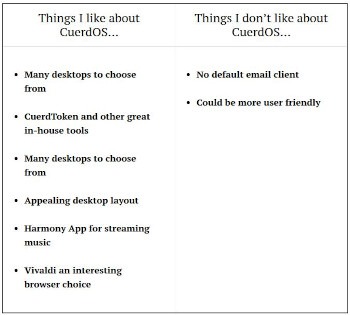
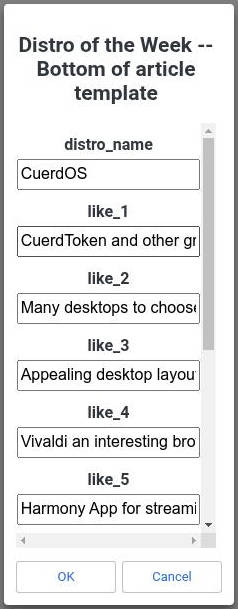
The first template I created for this plugin was of an HTML table that gets inserted the end of our weekly Distro/App of the Week columns, which lists a few of the things that the reviewer likes and dislikes about the software being reviewed.
While I once had to search for the places to insert the software’s name and the writer’s likes and dislikes into some HTML I’d written, these days all I have to do is open a template I created, and Joplin presents me with a labeled list — with text boxes — of the variables within the template. All I have to do is fill in blanks — …er, text boxes — and the plugin does the rest. After that, all that’s left for me to do is copy and paste the code Joplin presents at the proper place in Cafiero’s or Wallen’s column, and voila!
Recently, Joplin added a built-in template feature with limited functions. For most templates, however, you’re better off with the much more capable plugin version.
Creating a template
After installing the Templates plugin in Joplin (Wallen explains how to install Joplin plugins in his column) you’ll need to create a notebook called Templates, which is where all of the templates you create must reside for the plugin to find them.

Then, to create a template, open a new note and type or paste the content that will be the basis of the template. After that, add template variables, which are sorta like shortcode. These variables can be anything from text that will need to be entered by you (like “distro name,” “likes,” and “dislikes” in my example) or date and time, which the plugin will add without input from the user (you can even add math functions — useful for templates for invoices and the like). Variables are surrounded by a double set of brackets, like this: {{variable_name}}.
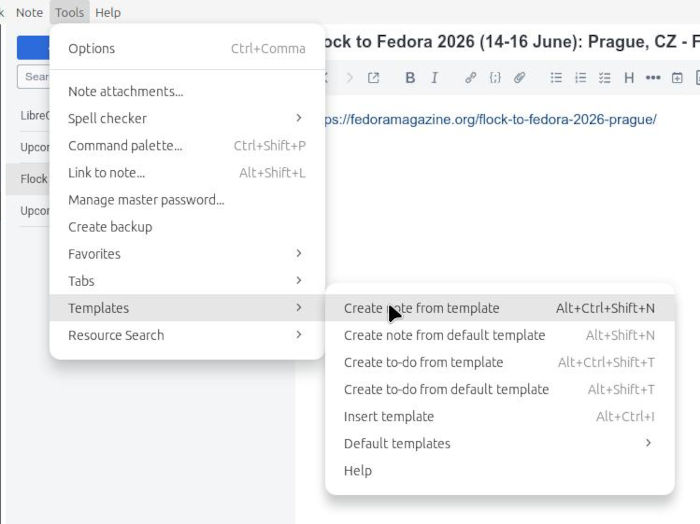
Almost everything you can do with a template can be accessed through Tools>Templates. For example, to create a file based on a template — which is what I need to do with my end-of-article template — go to Tools>Templates>Create note from template.
For a complete list of the plugin’s variables — and for full instructions on its use — visit the plugin’s page on Joplin’s website.
Note Tabs and Favorites
The other two plugins that I think are essential for working with Joplin are not as complex and also don’t have as much Wow! factor. However, they make managing your work in Joplin much easier.
Note Tabs: I find this plugin to be especially useful when researching information I’ve imported into Joplin from web pages that I’ve clipped using Joplin’s web extension (also covered in Wallen’s article). Much like browser tabs, the plugin turns any note I’m viewing into a tab, but unless I pin a tab by clicking the silhouette of a pushpin on the tab’s right side, the tab goes away as soon as I view another note.
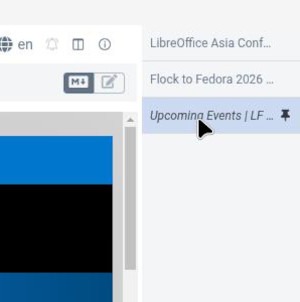
Pinned tabs remain on screen, easing the path to return to that note. This makes them handy when doing any sort of work that requires going back and forth between notes. I find them useful when I’m doing research for an article, or for when I’m working on FOSS Force’s calendar of open source events.
Favorites are similar to the Note Tabs, insofar as they offer easy access to notes, and like tabs appear on the screen at a user-designated place accessed through View>Change application layout. Favorites serves a similar function to a bookmarks bar, by making notes you use frequently readily available. To favorite a note, right click on its menu listing and choose “Add notebook to Favorites.”
One benefit of favoriting a note is that clicking on it changes Joplin’s menu to display all notes below it in the menu hierarchy.

Christine Hall has been a journalist since 1971. In 2001, she began writing a weekly consumer computer column and started covering Linux and FOSS in 2002 after making the switch to GNU/Linux. Follow her on Twitter: @BrideOfLinux