If you rely heavily on note-taking apps and want to switch from a proprietary to an open-source solution, this app might be what you’re looking for.
The FOSS Force Linux App of the Week — Joplin
Do you take a lot of notes? If so, do you depend on an app to keep those notes organized and available?
If so, you’ve maybe been using Evernote as your go-to, but clearly that option has become far less attractive since it was acquired by Italy-based Bending Spoons a couple of years back. On top of that, Evernote’s attempt at a Linux port only lasted a short while — even then it was buggy — which has forced Linux users to work with the web-based version. I don’t know about you, but I do not need yet another tab open on my browser.
After searching for a new note-taking app, my journey took me to Joplin.
Joplin is an open-source cross-platform app (released under the AGPL and Joplin Server Personal Use licenses) that is available for Linux, macOS, Windows, Android, and iOS. It’s free, has a ton of features, a well-designed UI, and can sync with Joplin Cloud, Dropbox, or OneDrive, and other storage services.
One thing to keep in mind is that syncing with Joplin Cloud does have an associated cost, but you can escape all costs by syncing with Dropbox’s and OneDrive’s free plans and remaining within their “free” limits. I’ve found the Dropbox sync feature to be easy to use and reliable.

As far as features are concerned, Joplin includes:
- No ads, no proprietary formats, and full data ownership.
- Cross-platform.
- End-to-end encryption (E2EE) for synced notes.
- Ability to access and edit notes without an internet connection.
- Markdown support as well as support for tables, math, and diagrams (Mermaid).
- Ability to create checklists and tasks within notes.
- Use notebooks, sub-notebooks, and tags to sort notes.
- Embed images, PDFs, audio, and other files.
- Powerful full-text search across all notes.
- Sync with Nextcloud, Dropbox, OneDrive, WebDAV, or Joplin Cloud.
- Import from Evernote (ENEX) and export notes in various formats.
- Browser extensions for Firefox and Chrome to save web pages.
- Extend functionality with community plugins and custom CSS.
- WYSIWYG editor as an alternative to plain Markdown.
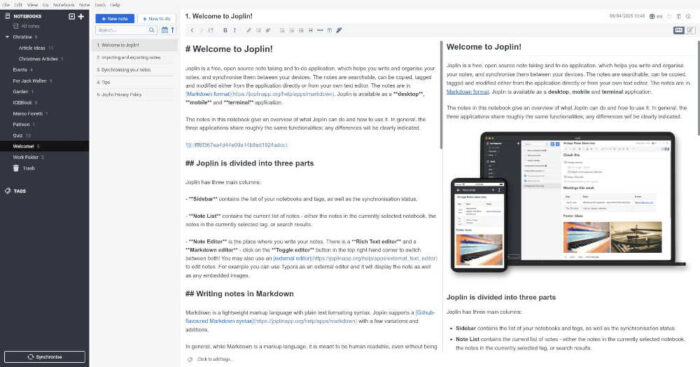
Another feature that I really appreciate about Joplin is that, upon installation, you’ll see plenty of sample notes that describe and illustrate all of its features, making it much easier to get up to speed.
Installing Joplin on Linux
There are a couple of ways to install Joplin on Linux. First, you can download and run it as an AppImage. If you go this route, I would highly recommend using Gear Lever, which adds a Joplin entry to your desktop menu so you don’t have to run it from the command line every time. The app is also available as a Flatpak on Flathub, which you can either install by the command line if your system is Flatpak ready, or by using a Flatpak app such as Bazaar. The other option is to install Joplin via the command line, which should work if your system is set up for Flatpaks.
The command for installing from the command line is:
wget -O - https://raw.githubusercontent.com/laurent22/joplin/dev/Joplin_install_and_update.sh | bashI tested the command line option on Arch, Fedora, and Ubuntu, and it worked like a charm for each.

Syncing Joplin
Once you have Joplin installed, you’ll probably want to set up synchronization (so you can access your notes from other locations). To do that, open the Joplin app, click the Synchronization button at the bottom left, select the cloud option you want to use (I’ll demonstrate with Dropbox), and then copy the URL listed in the resulting window into a browser that is already logged into your Dropbox account.
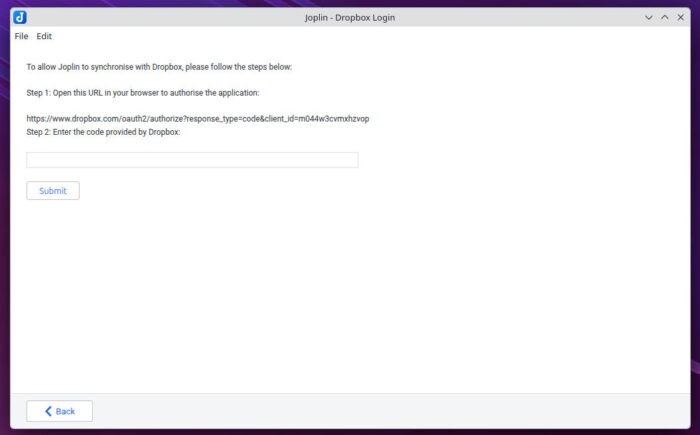
You’ll be presented with a code that you then must copy into the Joplin Dropbox login window. Do that and click Submit. Joplin should now be connected to your Dropbox account.
You can connect as many Joplin instances as you like to your Dropbox account.
Using Joplin
Using Joplin is very straightforward. From the main window, you’ll see several sample notes that give you tips on how to start creating with the app.
I recommend that you read through all of the sample notes, so you can quickly get up to speed with using this note-taking app. There really aren’t any surprises here: if you’ve used any note-taking app, you should feel right at home with Joplin.

Plugins
One feature that you’ll certainly enjoy is plugins. Joplin has a section on its website dedicated to plugins and there are quite a lot of them. The options range from rich markdown, templates, kanban, math mode, quick links, diff view, table formatter, tagging, conflict resolution, and more.
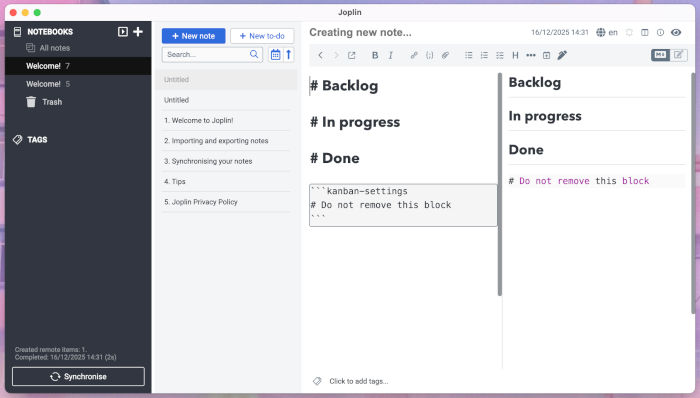
Installing a plugin is easy. Here’s how to install the Kanban plugin YesYouKan:
- Open Joplin
- Open Settings and go to Tools > Options
- Click on “plugins” in the sidebar
- Search for “YesYouKan”
- Click install
- Restart Joplin
Once installed, go to Tools > Create Kanban Board, and a new board will appear.
Browser Extension
Joplin also has a web browser extension that allows you to capture and save web pages and screenshots from your browser directly to Joplin.
To use the Joplin Web Clipper extension, locate it in your browser’s plugin store and install it. Once it’s installed, you have to enable the Web Clipper service in Joplin by going to Settings > Web Clipper and clicking Enable Web Clipper Service.

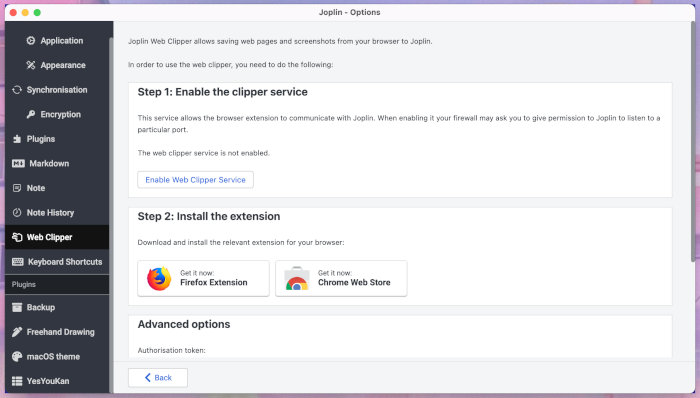
When you click on the Joplin browser extension for the first time, you’ll be informed that you have to grant it permission. Go back to Joplin, and you’ll see a pop-up, where you can grant the app the necessary permission.
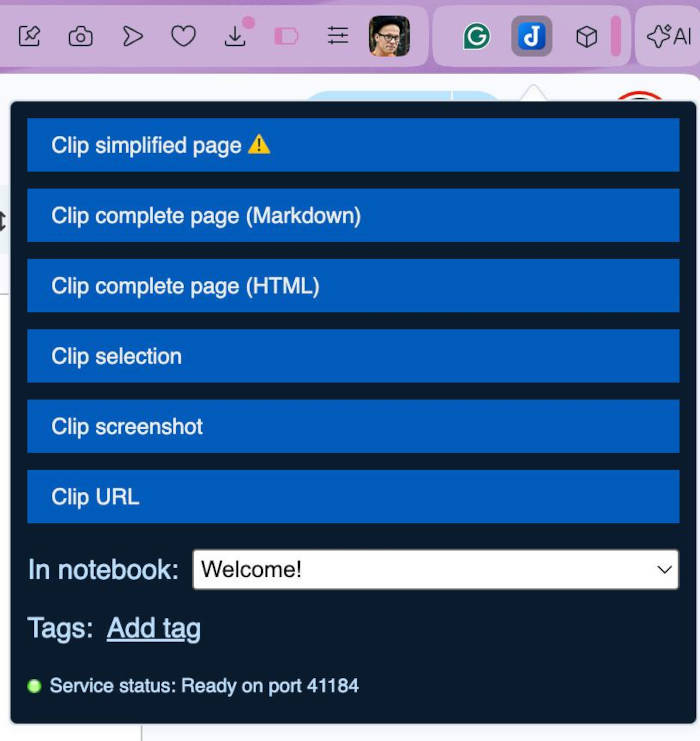
Now, if you go back to the Web Clipper extension, you’ll see a drop-down menu where you can select different aspects of a website to clip to Joplin.
Joplin has become my note-taking app of choice. I find it offers just the right amount of features, without going overboard. It’s easy to use and the plugins make it easy to expand the feature set.
Give this note-taking app a try and see if it doesn’t become your go-to.
Things I like about Joplin |
Things I don’t like about Joplin |
|---|---|
|
|

Jack Wallen is an award-winning writer for TechRepublic, ZDNET, The New Stack, and Linux New Media. He’s covered a variety of topics for over twenty years and is an avid promoter of open source. Jack is also a novelist with over 50 published works of fiction. For more news about Jack Wallen, visit his website.