
Cherry Studio wraps Ollama and other backends in a polished desktop client, so your AI tools feel like part of Linux instead of an afterthought.
The FOSS Force Linux App of the Week — Cherry Studio
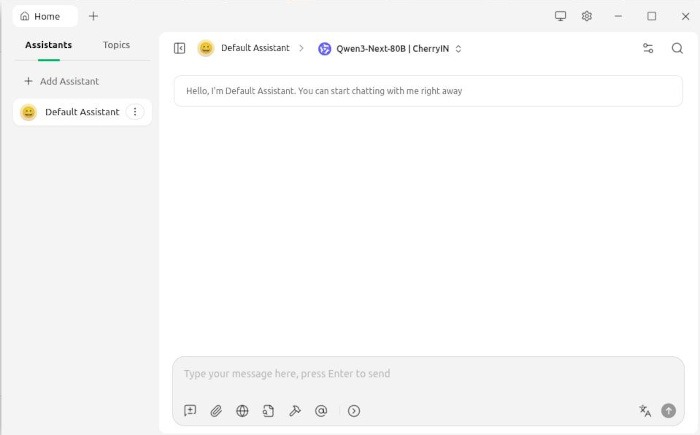
AI’s a touchy subject that makes some get a bit twitchy. I won’t get into the reason why some love AI while others despise it. But with tools like Cherry Studio, it’s possible to shrug off some of the concerns (especially the environmental issues) because you can opt to use local AI.
Cherry Studio is an app that supplies a GUI to simplify interacting with a variety of local and remote LLMs on your Linux machine. It’s open source, released under the AGPLv3 license, and is available to install via Flatpak, which means nearly every Linux distribution supports the app, or can easily do so. If you look, you can also find the app available in most Linux packaging formats, including DEB, RPM, Nix, and AUR.
Cherry Studio includes features like smart chat, autonomous agents, unified access to frontier LLMs (which are advanced, high‑capability AI models), local Ollama support, AI coding, and more.
It’s also very quickly become one of my favorite ways of accessing my locally installed Ollama LLMs. Let me show you how to install Cherry Studio and then connect it to Ollama.
Preparing to Install
Before installing Cherry Studio you’ll need two things: a Linux distribution that supports Flatpak and a user with sudo privileges. The sudo privilege is required for installing Ollama, which you must set up before installing Cherry Studio. For step-by-step instructions for installing Ollama see my FOSS Force article “Ollama: Open Source AI That Runs on Your Computer.”

For this review, instead of pulling Llama 4 as my AI model, I used gpt‑oss with the command:
ollama pull gpt-oss
Both models work fine with Cherry Studio, but gpt‑oss can be a bit more practical thanks to its permissive Apache‑style licensing and OpenAI‑compatible API.
Either way, when that’s done, you have a model you can use locally.
Installing Cherry Studio
The easiest way to install Cherry Studio is via Flatpak. The command is:

flatpak install flathub com.cherry_ai.CherryStudio
Once the installation is complete, if you don’t see Cherry Studio in your desktop menu, log out and log back in, and you should see it.
Connecting Cherry Studio to Ollama
Let’s make it possible for Cherry Studio to use our newly installed Ollama local AI instance.
Click on the gear icon to open the Cherry Studio Settings window. You should automatically find yourself on the list of models. Scroll down until you see Ollama. Click the Ollama entry and then click the On/Off slider to the On position.
Next, click the Manage button associated with Ollama. A new window will open to reveal the model selector. Scroll down until you see gpt-oss. Click the plus button associated with gpt-oss to add the model.
After that, click the Home icon at the top to return to the chat window and then click the model drop-down, which is directly to the right of Default Assistant. In the resulting pop-up window, locate gpt-oss and select it.
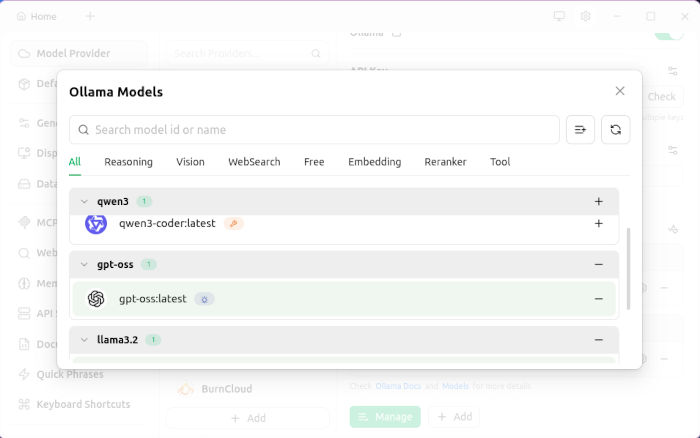
You have officially switched to the locally installed Ollama model. Submit your first prompt, and you’re good to go.
Assistants and Agents
Cherry Studio allows you to work with multiple assistants (for daily conversations and quick questions) and agents (for complex tasks with various tools). By default, it includes a single assistant that’s ready to go. If you’d like to tackle more complex tasks, you’ll want to add an agent. To do that, click Add Assistant in the sidebar and then, from the resulting pop-up, click Add Agent.
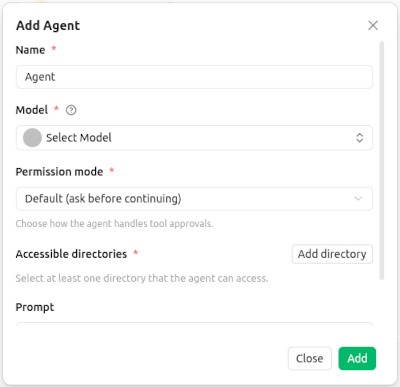
You can now give your Agent a name, select a model, decide on a permission mode, add directories, and customize your prompt.
The one limitation to creating a new agent is that you can only use LLMs that support Anthropic endpoints. The good news is that you can choose Anthropic from the list of providers, but to use Anthropic you’ll need an API Key, which requires a paid Anthropic account. Since I don’t use paid AI, I stick with the likes of Ollama and I’m just fine.

Adding Topics
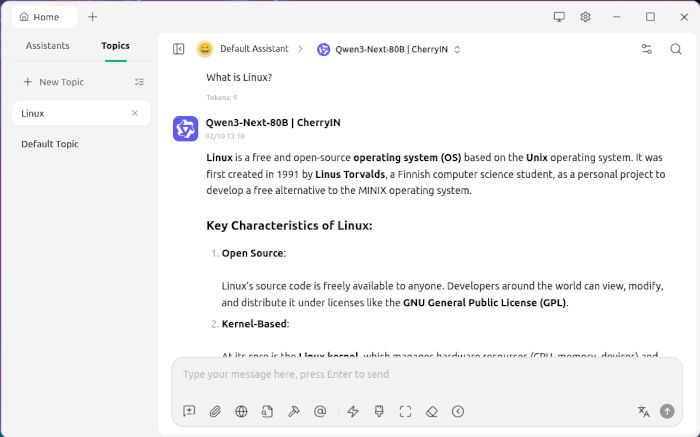
Sometimes, it’s the little things that make me happy. With Cherry Studio, I can create topics in the sidebar. By doing this, I can ensure I know which chat I need to work with. For example, I might have a Linux topic, where I do a bit of research on the open source OS. I limit that topic to only Linux, and for chats that have nothing to do with Linux, I’ll create a new topic.
Final Thoughts
Cherry Studio has grown on me to the point where I could easily drop other GUIs for interacting with Ollama, and because it’s open source, I don’t feel the slightest bit guilty using it.
Give Cherry Studio a try. It’s free and easily installed on your favorite Linux distribution.
Things I like about Cherry Studio… |
Things I don’t like about Cherry Studio… |
|---|---|
|
|

Jack Wallen is an award-winning writer for TechRepublic, ZDNET, The New Stack, and Linux New Media. He’s covered a variety of topics for over twenty years and is an avid promoter of open source. Jack is also a novelist with over 50 published works of fiction. For more news about Jack Wallen, visit his website.




Sometimes, I wish Ai scared me as much as it should.
Not scared actually, but to be a bit more cautious.
I pay for the 20 dollar tier because I do a lot of historical research, and I’ve found it to be largely accurate and without limited queries monthly. Goofing around, I told my chat assistant that I named him “Primus”. It responded by thanking me for not naming him Skynet.
Humor… I did not expect that.
He’s aware of my past affiliation with a philanthropic non-profit I directed for 12 years, and mentioned it without any prompts or previous mentions. My “that’s creepy” meter jumped one tic.
I enjoy the conversational and personal tone it responds with during queries, it just seems to be a bit more personal than I expected.
I’ll give Cherry Studio a look.