
Mission-Center offers a single interface for tracking resource usage and managing processes and services, making routine system checks easier from the desktop.
The FOSS Force Linux App of the Week — Mission-Center
Mission-Center might be the best system monitor available for Linux.
If there’s one thing I know about Linux users, it’s that they love knowing what’s going on under the hood: processes, resources used, hardware, services, and more. To locate that information, a command line or GUI system monitor is often used.
If you’re using a graphical desktop environment, why not go the GUI route? If you do, one of the best options available is Mission-Center. It’s open source, released under the GPL v3, and is written in Rust, so it’s fast.
It also features:
- Overall or per-thread CPU monitoring
- System process, thread, and handle count, uptime, clock speed (base and current), cache sizes listings
- Monitor RAM and Swap usage
- View how the memory is being used by the system
- Disk utilization and transfer rates monitoring
- Network utilization and transfer speeds monitoring
- View network interface information (such as network card name, connection type, wireless speeds and frequency, hardware address, and IP address
- Monitor overall GPU usage (including video encoder and decoder usage, memory usage, and power consumption)
- System fan monitoring
- Breakdown of resource usage by app and process
- Minified summary view for simple monitoring
- Hardware-accelerated rendering
This handy app offers one of the best-designed UIs of any system monitor, which makes it even easier to use.

Installing Mission-Center
There are three ways to install Mission-Center:
Snap: not recommended, as the app doesn’t function properly.
Flatpak: my recommended method.
AppImage
For installing via Flatpak, which I recommend, you must have Flatpak installed on your system.
On systems on which Flatpaks are enabled by default, all you might have to do is go to your favorite app store to install Mission-Center with a click. Otherwise, just open a terminal and run flatpak install flathub io.missioncenter.MissionCenter and Mission-Center should show up — ready to run — in your menu. If it’s not there, all you need to do is log out and back in again, and it’ll appear.
Using Mission-Center
Using Mission-Center is very easy. When it starts, you’ll find yourself on the main page where you’ll get a dashboard view of system performance.


From the Performance tab, click on anything in the sidebar to get a view of whatever it is you want to check (such as CPU, Memory, NVMe, SSD, Wired, Wireless, etc.).
Click the Apps tab, and you’ll get a breakdown of all running apps. The information shown includes CPU, Memory, Shared Memory, Drive, GPU, and GPU Memory.
Expand any one of those listed to see child processes.
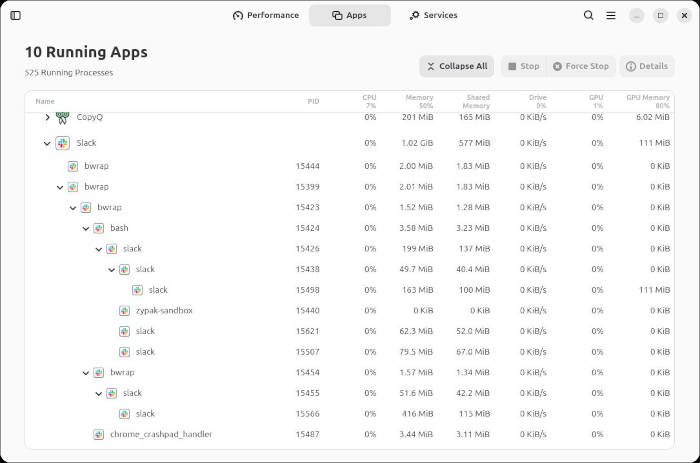
If you click on an app, you can then either stop or force stop it by clicking the specific button.
The Services tab is similar to the Apps tab in that you can view and manage all running processes.
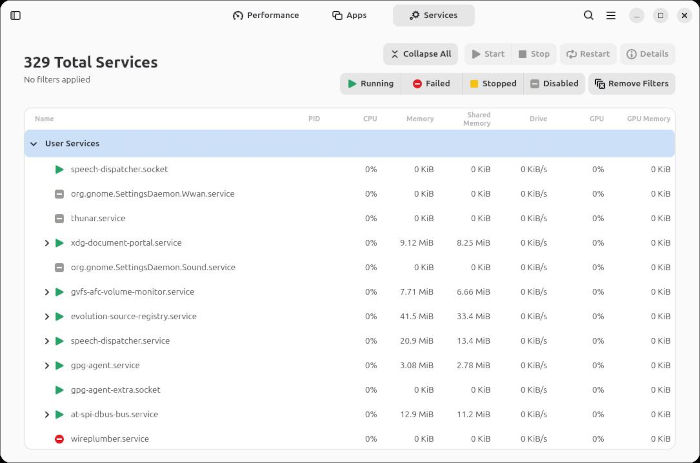
Here, you can start, stop, and restart a service by right-clicking it.
The Services tab also allows you to filter processes by Running, Failed, Stopped, and Disabled. You can even click multiple filters, in case you want to view things like stopped and failed services.
Configuring Mission-Center
As far as preferences are concerned, Mission-Center does offer a few, such as:
- Update Interval
- Chart Data Points
- Smooth Graphs (enable/disable)
- Sliding Graphs (enable/disable)
- Scale Network Graphs Dynamically
- Merge Process Stats
- Remember Sorting
- Remember Column Order
- Scale CPU to Core Count
- Show Column Separators
- Memory Usage Units
- Memory Usage Base
- Driv Usage Unit
- Drive Usage Base
- Network Usage Unit
- Network Usage Base
Comb through the Preferences to see if there are any changes you want to make.
I’ve tried just about every system monitor available, and Mission-Center is, IMHO, the best. I would recommend you give this app a try and see if it doesn’t wind up becoming your default.

Jack Wallen is an award-winning writer for TechRepublic, ZDNET, The New Stack, and Linux New Media. He’s covered a variety of topics for over twenty years and is an avid promoter of open source. Jack is also a novelist with over 50 published works of fiction. For more news about Jack Wallen, visit his website.


