
A deterministic password manager that generates, rather than stores, your logins — and makes versioning old passwords surprisingly handy.
Master Key is a unique and worthy password manager for Linux. At this point, if you’re not using a password manager (other than the one connected to your web browser), you’re playing a game of chance with your most important data.
There are several high-quality password managers available for Linux, such as KeePassXC and Bitwarden. There are also a handful of lesser-known password managers, such as open source Master Key, released under GPLv3.
This particular password manager is probably a bit different than what you’re used to. First off, it generates a password using a combination of a master key, a website, and a login. If you have keen powers of inference, you might see where this is leading. If not, let me explain.
Master Key isn’t a password manager for storing login credentials that are already in use. Say, for instance, you already have a login for Amazon. If you go to create an entry for it in Master Key, you’ll find that you cannot change the random password it generates for you. In other words, if you want to use Master Key to store the credentials for that account, you’ll have to change the password.
That’s not exactly a bad thing, as passwords should be regularly (and randomly) changed. However, the question remains whether an app like Master Key is right for you, especially when there are more traditional password managers available?

I installed the app to draw such a conclusion.
Installing Master Key
Unless you want to go the source route, Master Key is only available as a Flatpak from Flathub. That means there’s a chance you’ll be able to install it directly from your system’s app store if you’re using a distro such as Linux Mint, elementary OS, and others that make Flatpaks available by default. Even if not, installation is simple as long as you make sure your system is prepared for Flatpaks first. When you’re ready to install via Flatpak, the command is:
flatpak install MasterKey
That’s it. If you don’t see the entry in your desktop menu, log out and log back in, and it’ll appear.
Using Master Key
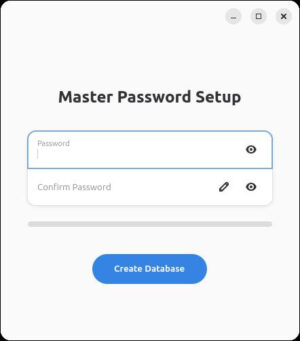
When you first launch Master Key, you’ll be prompted to type and verify a master password before a new database can be created.
After typing/verifying your password, click Create Database, and you’ll be presented with the main window.
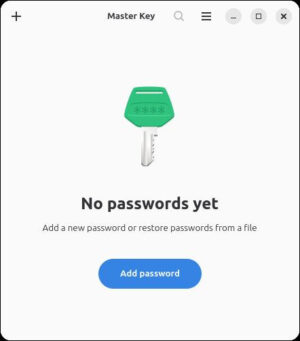
Click “Add password,” and you can then create your first entry. In the password add window, type the domain for the service, type a username, and customize the length of the password (you can also set the version number – which is quite handy), and configure the character set. Once you’ve done that, the password field will be randomly filled, and you can click save to save the entry.
Even if you go to edit the newly-created password entry, you cannot change the password. The only way to change the password is to change the version number. The nice thing about the version number is that if you go to edit the password and you change the entry to a previous version, the original password (of the previous entry) is retained. This feature comes in handy when you need to change the password on an account, but the change requires the previous password for authentication.
Have you ever gone to change a password for an account, but forgot to make a note of the previous password before it was too late? That happens, and it’s frustrating.
Configuration Options
One of the first things I did was change the timeout option. As I mentioned, the default is only 60 seconds, which is a bit too short for my liking. Because I live alone and work from home, it’s fairly safe for me to up that timeout to, say, 5 minutes. To change that, click the three dot menu button in the upper right corner and select Preferences.
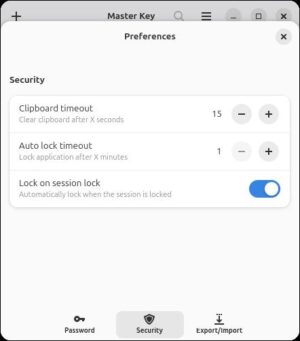
In the resulting window, click the Security tab, where you can adjust the auto lock timeout, as well as the clipboard timeout, which clears the clipboard after X seconds.
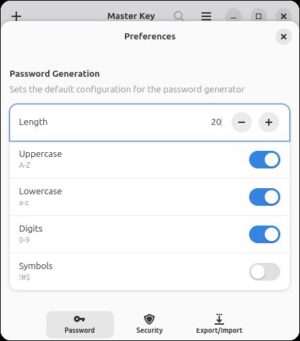
As well, if you go to the Password tab in the Settings window, you can configure how the password generation functions. This is handy if you know you always want your passwords to include certain characters and be of a specific length. For instance, I tend to use passwords that are 20 characters long and include uppercase, lowercase, digits, and symbols, so I make sure those configurations are taken care of.
Finally, there’s the Export/Import tab, where you can export your database to a plain-text JSON file and import from the same type of file.
Remember, those exported files are in plain text, so don’t leave them lying around on your local storage where someone might have access to the data within.
That’s the gist of using Master Key. The app is simple, straightforward, and handy. If you’re not already using a password manager on Linux, give this one a try.

Things I like about Master Key… |
Things I don’t like about Master Key… |
|---|---|
|
|

Jack Wallen is an award-winning writer for TechRepublic, ZDNET, The New Stack, and Linux New Media. He’s covered a variety of topics for over twenty years and is an avid promoter of open source. Jack is also a novelist with over 50 published works of fiction. For more news about Jack Wallen, visit his website.



Be First to Comment