
Prefer to drive Linux from the home row? Rofi and wofi turn a simple key combo into a fast app launcher and window switcher on both X11 and Wayland.
The FOSS Force Linux App of the Week — Rofi
Rofi is a handy little Linux keyboard launcher.
Any chance I can get to make Linux a bit more efficient, I’m going to take it. Sometimes that’s simply a matter of configurations, while other times it requires the installation of an app or two.
One way to do this is by adding a keyboard launcher.
If you hit the Super key (sometimes called the “Windows” key — I know, boo hiss), your desktop menu will open, where you can search for the app you want and then launch it. Now, imagine you could install a small app that would do the same thing… and more.
That’s what keyboard launchers are; they allow you to launch applications, run commands, some of them even have the ability to search for files. They are very, very handy.

Don’t get me wrong, a lot of Linux distributions have evolved into remarkably efficient desktop operating systems, and some of them even have built-in keyboard launchers. But not all keyboard launchers are created equal.
I’ve already covered the Albert launcher and found that it felt like magic. And while Albert is an incredibly well-designed keyboard launcher, some might find it a bit lacking, especially in the look and feel department.
That’s where a keyboard launcher such as rofi comes into play.
Now, before I get into this, I need to mention something. The open source rofi keyboard launcher — released under GPL v3 — is currently an X11-only app, meaning it only works on the legacy display protocol. There has been an effort to get it running on Wayland, X11’s replacement, but it’s still not really ready for general use. If you use a distro or desktop environment that opts for Wayland, you’ll need to check out wofi, which is the Wayland version of rofi. Wofi isn’t quite as fully-baked as rofi, but it’s coming along. Both of these keyboard launchers can be installed via the standard repositories of your distribution.
So, if you use X11, install rofi, and if you use Wayland, install wofi.

I’m going to focus on rofi because the test machine I’m using (which is running Ultramarine Linux) is an X11 desktop. I’ll touch on wofi at the end.
Installing Rofi
Installing rofi is quite simple, just open a terminal window and issue one of the following commands:
- Ubuntu/Debian-based distributions:
sudo apt-get install rofi -y - Fedora-based distributions:
sudo dnf install rofi -y - Arch-based distributions:
sudo pacman -Sy rofi
Now that you have it installed, let’s take our first steps with the app.
Fun times.
The Rofi Mode
This is the first thing you have to understand about rofi: Modes. The rofi launcher can be run in different modes; the most popular being:
- run: launching applications
- window: switching between open windows
- drun: desktop application launcher
- ssh: connecting to remote servers
The difference between run and drun is that the run mode shows executable files, allowing you to quickly search for and launch programs, whereas drun mode displays .desktop files of installed applications, which are used by desktop environments to populate launchers and menus.
In other words, run allows you to open any application installed on the system, while drun only allows you to launch apps with .desktop files.
Let’s say you want to launch Firefox from rofi. To do that, you would issue the command:
rofi -show run
The rofi window will open and you can then type Firefox (or just fire), and launch the app from there.

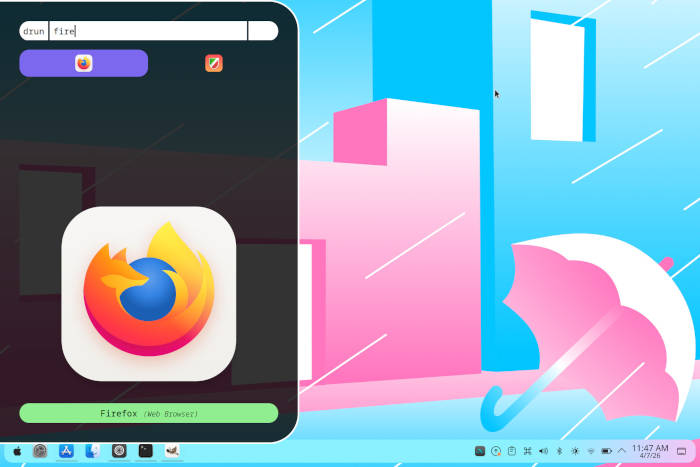
-show run mode.OK, you’re probably wondering how in the world that could be considered efficient. Well, it’s not, but you can take a few extra steps to make it so.
When you install rofi, it’ll add two entries into your desktop menu: rofi and rofi-theme-selector. The rofi entry runs the command without any options, so it defaults to window mode. This can be very helpful if you’re using a tiling window manager. But for more traditional desktop environments or window managers, the window mode might not be as useful.
To fix that, you have to change the menu entry. If you’re using a desktop like KDE Plasma, it’s just a matter of finding the rofi entry in the desktop menu, right-clicking it, selecting Edit Application, and then (in the resulting window), changing rofi to rofi -show run. Save the change and close the menu editor.
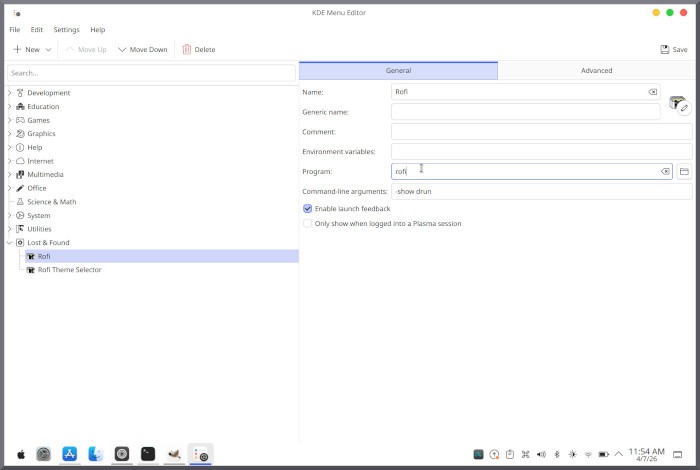
Now, when you run rofi from the menu, it’ll allow you to launch applications.
It’s still not very helpful, is it? If you’re opening the desktop menu, why not just open the application you need?

You can simplify this by adding a custom keyboard shortcut to launch rofi. For example, in KDE Plasma, you’d add the keyboard shortcut in the same location that you changed the menu command, only in the Advanced tab.
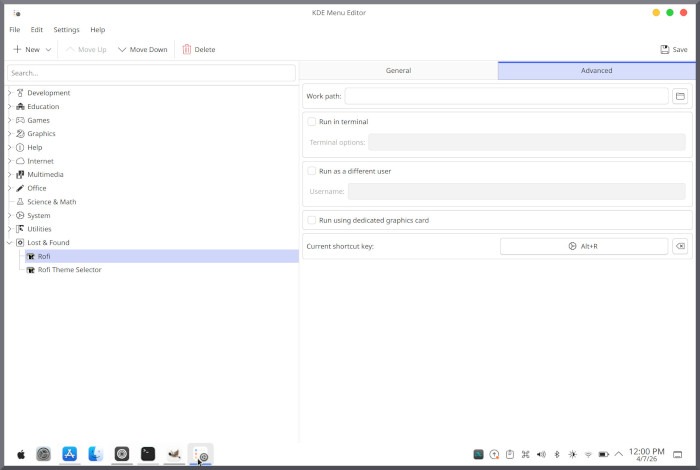
Now, to invoke rofi, you just use that keyboard shortcut.
Much better.
Rofi Themes
Rofi does include several themes you can choose from, which is done from the rofi-theme-selector app. You can run that from the command line or from the desktop menu.
When you open the theme selector, use your keyboard arrow keys to scroll through the themes and select the one you want. After selecting the theme you want, you then have to hit Ctrl+a to save the theme. If you don’t do this, rofi will continue to open in the default theme (which is kind of ugly).
Once you’ve applied your theme, the next time you open rofi, it should show.
Wofi
I just want to briefly touch on wofi. As I said earlier, this is the Wayland version of rofi and, for the most part, its usage is the same. One of the biggest differences is that the show option uses a double dash. So while, rofi would use rofi -show run, wofi uses wofi --show run.
Wofi also doesn’t have a theme selector. Instead, you have to get online, search for a cool theme, download the file, and create the necessary directory with:
mkdir ~/.config/wofi
Next, move the downloaded file into the ~/.config/wofi directory and then extract it. You should find a style.css file, which is the configuration file for that theme. The next time you open wofi, the new theme should apply.
Final Thoughts
If you’re looking for a simple keyboard launcher that won’t overwhelm you with options, either rofi or wofi are good choices. Does rofi top the likes of Albert? Not really, but for those who need the option of window control, then rofi is your best bet.
Things I like about rofi… |
Things I don’t like about rofi… |
|---|---|
|
|

Jack Wallen is an award-winning writer for TechRepublic, ZDNET, The New Stack, and Linux New Media. He’s covered a variety of topics for over twenty years and is an avid promoter of open source. Jack is also a novelist with over 50 published works of fiction. For more news about Jack Wallen, visit his website.


Be First to Comment