
With Markdown support, syncing across devices, and end‑to‑end encryption, Lockbook makes it easy to keep your Linux notes organized and locked down.
The FOSS Force Linux App of the Week — Lockbook
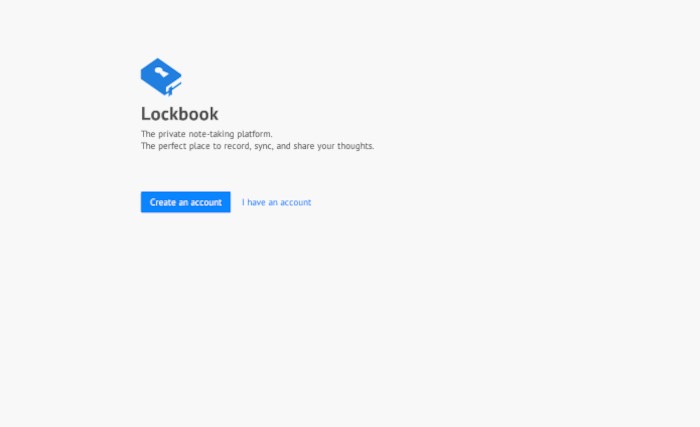
Lockbook is a private note-taking platform to sync and share your thoughts.
Note-taking is a big deal, so much so that there are hundreds (if not thousands) of note-taking apps available for every conceivable platform.
Linux is not immune to the popularity of note-taking apps, and I’ve used quite a few of them. There’s one note-taking app that’s available for Linux (as well as macOS, Windows, Android, and iOS) that I’ve come to appreciate, called Lockbook.
Lockbook is a GUI app. It’s not open source, but released under the Unlicense, which puts it in the public domain. It’s straightforward and simple to use, with features such as:
- Markdown and SVG support
- End-to-end encryption
- Collaboration
- Offline use
- PDF and Image preview
- CLI support
The developer is also working on new features, such as large file support, PDF editing, file system integration, document history, transcription, mentions / comments / notifications, browser extension for clippings, and LLM integration.

Lockbook is free to use, but you can pay for a premium subscription that gives you more storage. The free account gives you 25MB of storage, while the premium account, for $2.99 monthly, gives you 30GB of storage. Either way, you have to sign up for a plan, but that does give you the ability to sync Lockbook across all of your installations (more on that in a bit).
Lockbook is easy to install and use. Let’s find out just how easy.
Installing Lockbook
Lockbook is installed as a flatpak app. If you’ve not already set up your system for Flathub, make sure to follow the instructions in “How to Make Your Linux System Flatpak Ready.”
Once you have your system ready, install Lockbook with the command:
flatpak install flathub net.lockbook.Lockbook

Once installed, you should find a Lockbook entry in your desktop menu. If not, you might have to log out and log back in for the launcher to appear.
Creating Your Account
When you open Lockbook, you’ll be presented with a page asking you to either create an account or log in with your existing account. Click Create an account. You’ll then be prompted to pick a username.
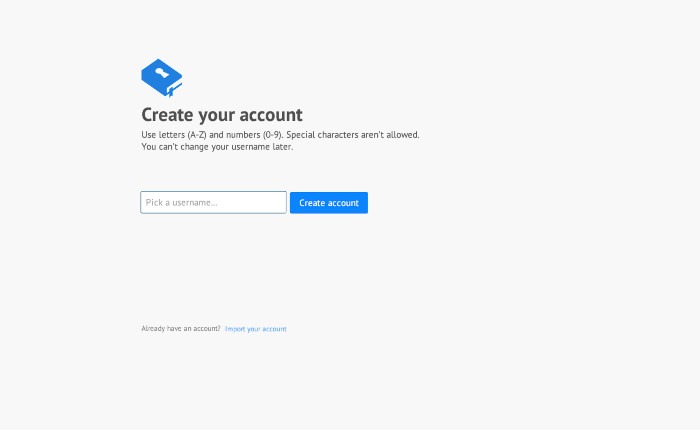
Click Create account. You’ll be presented with your account key, which is a list of 24 random words. It is crucial that you save that key; otherwise, you won’t be able to access your account. In fact, you can’t continue until you check the box indicating that you’ve stored your account key in a safe place.
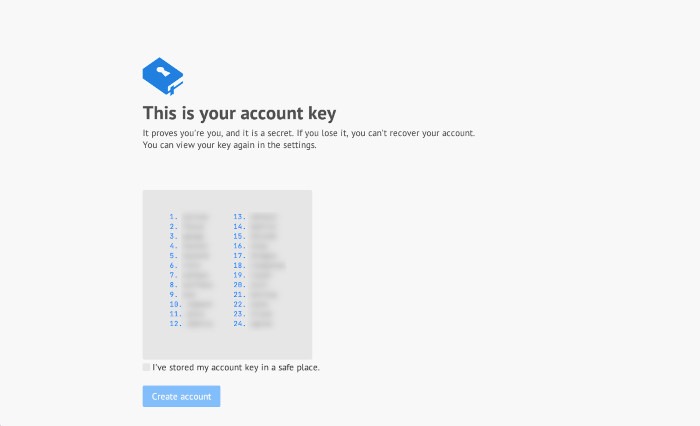
Here you need to pay attention; this is important. As you can see, the key is shown as a bulleted list. If you copy that key as is, it’ll copy the numbers as well, so when you save the key, you need to remove the numbers so that each word is separated by a space. If you attempt to use the key with the numbers, it will not work.
To log in, you just paste your key in the key field and hit Enter on your keyboard, which will land you on the Lockbook main page (which often defaults to the Welcome note).
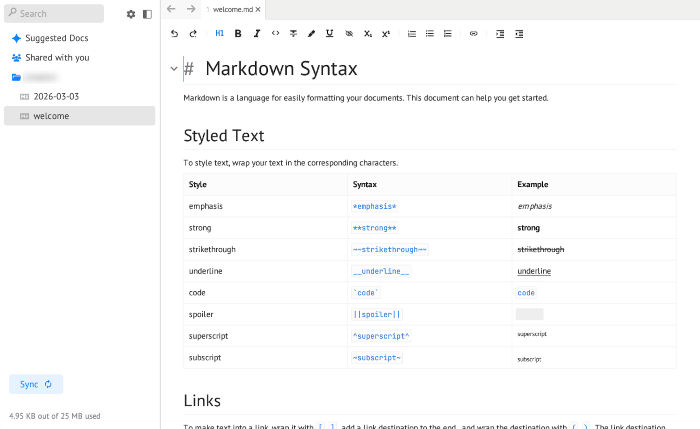
Each page of Lockbook is saved as an encrypted md file, which will live in the folder listed as the username you chose when you set up your account.
At this point, Lockbook is incredibly simple to use. Right-click your username and then select to create a new document, drawing, or folder. From that context menu, you can also rename, delete, export, share, and copy the link.
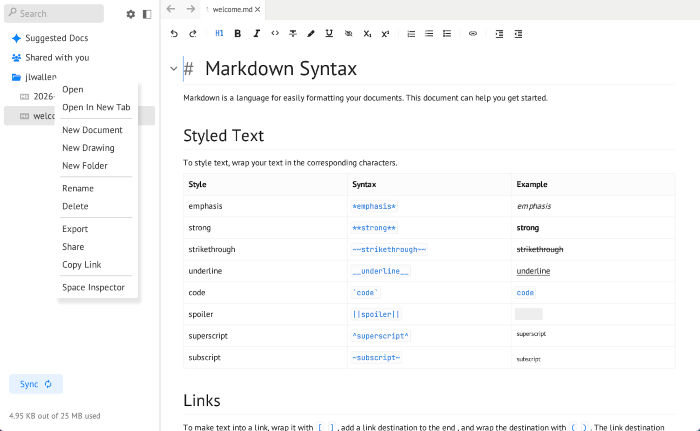
If you know markdown, you will feel right at home. If you don’t know markdown, pay close attention to the Welcome note, which shows you how to style text. I would recommend not deleting that note, so you can refer to it when needed.
Lockbook is a wonderful app that you can use on all of your Linux desktops (so long as they support Flatpak) to keep all your notes encrypted and in sync. Give this no-frills app a try and see if it doesn’t take the place of your current note-taking application.
For information on Lockbook, check out the official website. If you want to upgrade to the premium plan, you can purchase it in-app.

Things I like about Lockbook… |
Things I don’t like about Lockbook… |
|---|---|
|
|

Jack Wallen is an award-winning writer for TechRepublic, ZDNET, The New Stack, and Linux New Media. He’s covered a variety of topics for over twenty years and is an avid promoter of open source. Jack is also a novelist with over 50 published works of fiction. For more news about Jack Wallen, visit his website.

Be First to Comment