
Want AI-generated cover art for your ebook? Calibre now offers it, along with a substantial collection of less controversial improvements for Kobo users and readers.
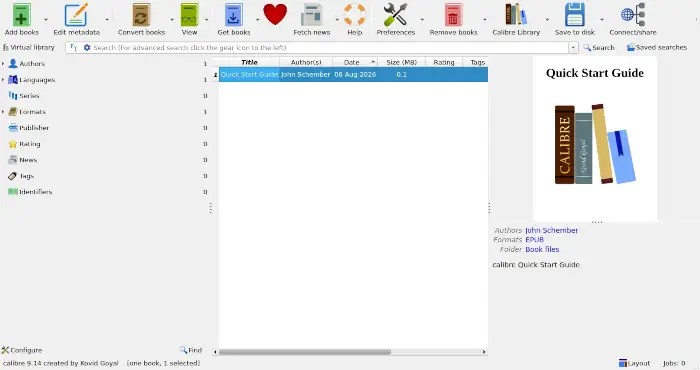
Calibre, the Swiss Army knife for ebooks is out with a new edition. Like practically every other app around, developers have added AI to the tool, and in a way I’m sure a lot of people aren’t going to like. I’m just as sure that this new feature is going to become something of a fan favorite, and will quickly be considered a marquee feature.
If you’re not familiar with Calibre, it’s an app that can not only be used by authors and other creative types to ready ebooks for distribution, it can also handle mundane functions, such as managing ebook libraries. It’s very useful because it can read from and convert to just about any ebook format. It’s also open source, released under GPL-3.0.
Released last week, the new Calibre 9.14 lets users generate book covers directly from the app using different cover styles such as romance, sci-fi, pulp fiction, and the like. Users need to configure an image generating AI provider the first time they use the feature, but other than that, it appears to be easy enough. Just select a book, click “Edit metadata,” and then the “AI Generate” button.
There’s good news on that front too. The AI platforms the app supports have been expanded to include Anthropic and Grok, which makes Claude and Grok available.

One word of caution: Before ending your friendship with the graphic design expert who lives down the street because you don’t need her anymore, you might want to ask yourself a question: After using some AI slop as the cover of your latest masterpiece, how many people will assume that the contents it’s covering is also AI slop?

Just sayin’.
Besides Paperback Cover Art… What’s New
There’s no shortage of new things to explore in this new Calibre. I quit counting at 16 new features. Here’s my top five list of new favorites, just to offer an example:
- Bookshelf view: Your books arranged on shelves showing their spines. Click the Layout button in the bottom right corner of the Calibre window to switch to this view.
- Improved Kobo support: This is going to make some people I know happy. Calibre can now natively edit, view, and convert Kobo’s KEPUB files. Also, EPUB files are automatically converted to KEPUB when books are sent to Kobo devices (configure this by right-clicking the Kobo icon).
- Quicker E-book viewer: Large EPUB-formatted books will now open twice as quickly when being opened for the first time. The developers claim that a 400,000-word EPUB book now opens in under a second on most hardware.
- Read aloud: A new Text-to-Speech engine, called Piper, uses a neural network for realistic-sounding voices. It runs locally, with no cloud services involved. To use it, access the viewer controls and click the Read aloud button or press ‘Ctrl+S’. Use of the old OS Text-to-Speech engine is still possible by clicking the configure button on the Read aloud control bar.
- Paper edition integration: There’s now support for jumping to and displaying paper edition page numbers. If an e-book contains embedded information about the pages from the paper edition of the book, Calibre’s E-book viewer can now jump to a page number using the Go to button in viewer controls. Optionally, you can have the current paper edition page number displayed in the header or footer by adding “Pages from paper edition” to either the header or footer in the viewer settings.
There’s much more that’s new. For a complete list, see the Changelog and Major New Features.
Take It for a Drive
Calibre is available for Linux, as well as macOS and Windows. In addition, there’s a portable version that can be used on computers running Windows 10 or later.
I think the easiest way to install the app is to skip the binary and install it as a Flatpak, either through your distro’s App Store (if it includes Flatpaks) or by using Bazaar, an excellent Flatpak management tool. If neither of those are available and your machine is Flatpak ready, you can also install it from Flathub by running the following command:
sudo flatpak install flathub com.calibre_ebook.calibre

Christine Hall has been a journalist since 1971. In 2001, she began writing a weekly consumer computer column and started covering Linux and FOSS in 2002 after making the switch to GNU/Linux. Follow her on Twitter: @BrideOfLinux


