
From the MX Linux community comes Extrox, a duo of Xfce-based spins—one MX, one Arch—that emphasize audio tooling without sacrificing day-to-day usability.

From the Land of the Rising Sun, courtesy of lead developer Tsuyoshi Nakamura comes this week Distro of the Week, Extrox Linux.
The distro is based on MX Linux. Another spin, Extrox Arch, is based-on MX Arch, an unofficial Arch-based MX community spin. Nakamura, who goes by the name Freja online, is behind both versions, and is also a contributor to the MX Linux art team who’s responsible for MX-19’s “Dusk Green” wallpaper.
Because it was a tough call to pick between Extrox’s two editions, I decided to test both. So congratulations – you get a twofer in this week’s column.

The number of audio-based apps and tools in both versions of the distro leads one to believe that Nakamura might be something of an audiophile, which leads me to reason that those who use Linux to primarily listen to music and watch videos would be at a clear advantage using this distro. But I’m getting ahead of the story.
Installing Extrox
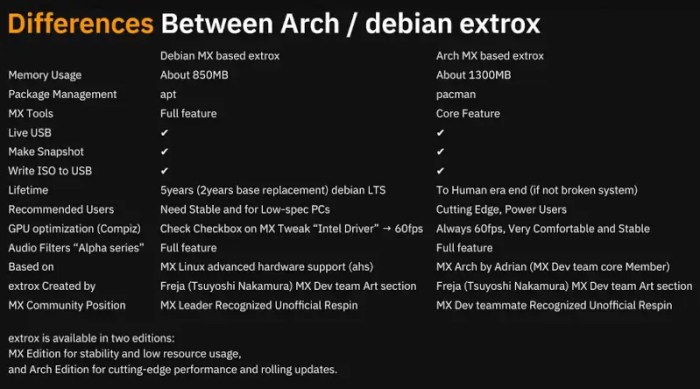
Minimum system requirements were a little difficult to figure. A page on Extrox’s website outlining the differences between Extrox and Extrox Arch indicates that the standard edition can run with as little as 850 MB RAM, while the MX Arch-based edition can run with as little as 1.3 GB RAM.

Nakamura added detail in an email. “MX Debian-based Extrox can runs 4 GB memory well, but MX Arch-based Extrox recommends 8 GB or higher machines,” he said. “For smoother operation, the standards of a typical Arch distribution or a typical MX Linux distribution will largely apply.”
The ISO for each version weighs in at around 3.5 GB apiece, which is a fairly normal size. After putting each on its own USB drive, I booted both onto several devices, and then clicked the install icon once I’d activated the WiFi on the live version. One caveat: on the live version of the MX Arch system, the display’s brightness is set to its lowest setting, which made it a bit hard to navigate until I brightened the screen. Once that was fixed, with a few clicks I was on my way.
Both versions ship with the MX Linux installer. While not as intuitive as Calamares, it’s fairly straightforward and starts by asking for a keyboard and a partition setup before starting the installation. At any time during the installation, users can click on a “next” button to include information such as time zone and login/password. If you ignore it, the installation will stop when 94% completed, and prompt you to provide the information before it completes the install.
Kicking the Tires
Both the MX Linux and Arch-based versions of Extrox come up with the same desktop, a modified version of Xfce 4.20 with a Welcome screen accompanied by a short jingle. The Welcome screen has a variety of destinations on it, which mostly link to MX Linux-based information, such as the MX Linux users manual and the MX Linux wiki.
Nevertheless, the desktop is clean and orderly, with a vertical top panel consisting of icons for menu, calendar and Log Out grouped to the left, and and icons for Wireless, upgrading, MX Tweak, Bluetooth, and Volume grouped to the right. There is a row of icons on the bottom of the screen with icons for launching software.

Once I updated each of the distros, I was off to the races.
Both versions come with plenty of software installed by default. Also included expected apps such as Firefox, Thunderbird, and LibreOffice, along with the unexpected PhotoGIMP – the customization patch for GIMP that makes it resemble Adobe Photoshop. The only software I added was the VLC media player, but it wasn’t really necessary since the original installation included both the Strawberry and Lollipop music players.

As already mentioned, there’s an unimaginable amount of audio-related apps and tools. Included is Linux Studio Plugins (LSP), a collection of audio-focused plugins that are compatible with a number of plugin formats — CLAP, LADSPA, LV2, VST2/LinuxVST, VST3, and as standalone JACK applications — so they’ll work with most audio hosts. Even if you’re not into audio, one can’t help being impressed with this selection.

In addition, there’s a large variety of MX Linux-based tools, and there is much to choose from. Both versions of the distro include apps such as Foliate (ebook reader), Catfish (file search), FeatherPad (text editor), Geany (IDE), Synaptic (package manager), Xfburn (CD/DVD burning application), and Orage (calendar), among others.
One of my all-time favorite apps is also on board. Conky is a free and highly configurable system monitor for the X Window System, which puts system information such as CPU use, memory consumption, and network activity directly on the desktop. It’s not enabled by default in Extrox, but a quick visit to MX Conky Manager – one of the many MX Linux tools included – solved that, and presented a wide assortment of options to boot.
Working in Extrox, on either version, is a breeze. The system is quick to respond to everything thrown at it, and the distro handled multitasking well. The highest memory usage I saw in System Monitor was 3.4 GB.
One software program that has endeared itself to me is the Strawberry music player. As I mentioned, I downloaded VLC, but for the most part I listened to CDs on Strawberry. While VLC pulls the heavy load in music and video – especially video – Strawberry has become a worthy go-to as a music player for distros.

Final Thoughts
Tsuyoshi Nakamura can be proud to be the lead developer of Extrox. While I don’t understand most of the included audio-related tools — and I don’t really have to since I’m not really an audiophile — the care and consideration he has taken to include a lot of different, yet related, software has resulted in a first-class Linux offering.
Is it good for beginners? Only the more adventurous ones who are not afraid to step away from the Windows/Mac paradigm. Even if they get stuck, the growing MX Linux community and wiki would have their backs. As for intermediate users and graybeards, Extrox — by virtue of its MX Linux base — should include all the tools necessary to get right to work.
The number of audio tools included might seem to make Extrox a distro aimed specifically toward audiophiles, but even if you were to remove these tools, the distro still stands out for the amount of software included by default.
If you’re ready to give one of these a try, Extrox Linux is available on SourceForge and Extrox Arch is available on Extrox’s website.

Do you have a distro you think would make a great feature for FOSS Force’s Distro of the Week? Don’t be shy—let us know! Offer your suggestions in the comments below (or use the “contact us” link under our masthead) and we’ll make an effort to make it so… No suggestion is too mainstream or too niche—let us know what you’d like to see!
Things I like about Extrox Linux… |
Things I don’t like about Extrox Linux… |
|---|---|
|
|
And suddenly we’re in the mood for some Nora Jones…


